About WebSMURF
WebSMURF is a way of finding out information about the rivers Tame and Rea in the West Midlands. It contains lots of scientific data about the rivers and the fish that live in them as well as a number of photographs. You can access this information using the WebSMURF System, which is explained in detail below.
The WebSMURF system is a cut down version of the full desktop SMURF System that was developed for the SMURF project by HR Wallingford. The full system contains a larger number of tools and a more accurate representation of the river (in WebSMURF the position of the river is only an approximation). The full system can be used by planning professionals and scientists to help answer 'what if' questions like 'what would happen to the river if we built a new housing development'.
Read a full description of the desktop SMURF System.
What information can I see in WebSMURF and how do I access it?
- First choose the type of information you want to see by choosing a tool using the tabs at the top of WebSMURF (there is a list of what information is available and which tool to use below):
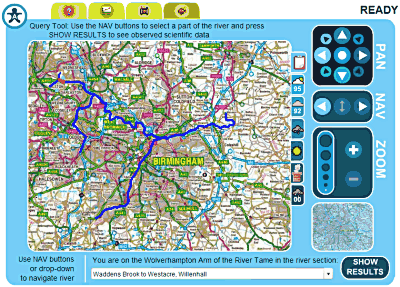
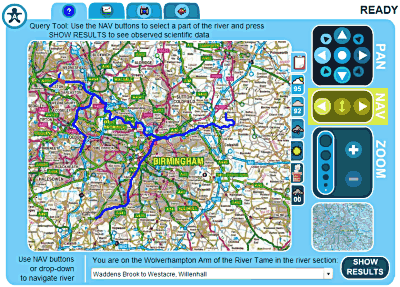
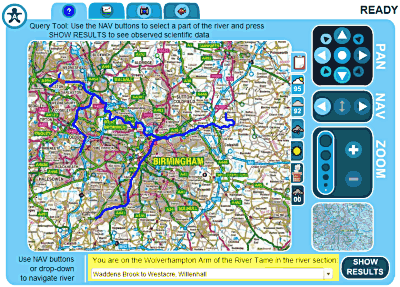
- Now choose the section of the river that you want to see information for. The simplest way to do this is to use the NAV buttons on the right hand side of WebSMURF to move up and down the river one section at a time (you can find out more ways of getting around the map in the section below):
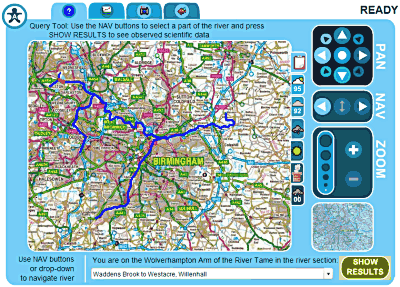
- Now press the SHOW RESULTS button in the bottom right corner of WebSMURF:
- A list of available information will open in a new window. Choose the information you want to see and it will be displayed.
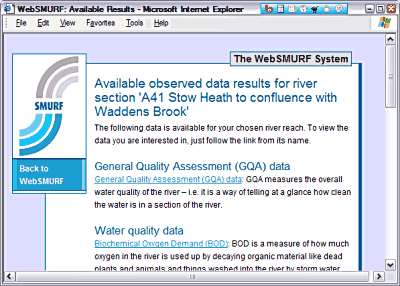
- When you have finished looking at the information follow the 'Back to WebSMURF' link to close the information window and return to WebSMURF.
The following information is available in WebSMURF
 The Query Tool lets you look at scientific information about the river. This includes General Quality Assessment (GQA) data (which measures the overall water quality of the river), Habitat scores (which tell you how much man has changed the river from its natural state), Flow data (which tell you how fast the river flows) and a host of Water Quality data (such as the amount of oxygen in the river and how warm it is).
 Coming soon! The Long Section Tool will let you see how scientific data changes along the whole length of the river.
 The Photo Tool lets you look at photographs of the river and its immediate surroundings.
 The Fish Tool lets you see information about the fish that can be found in the river.
How do I choose different river sections?
There are two different ways of choosing different river sections:
- Using the NAV buttons: The NAV buttons can be found on the right hand side WebSMURF. When you first load WebSMURF the river section 'A41 Stow Heath to confluence with Waddens Brook' will be selected. This is right at the 'start' of the river, in Bilston.
- Use the downstream NAV button to move downstream one river section at a time (the river flows from Bilston eastwards towards Birmingham).
- Use the upstream NAV button to move back a section
- When you are just upstream of a fork in the river, use the 'change tributary' NAV button to switch to the other fork.
- Using the drop down box: As well as telling you the name of the current river setion, you can use the drop down box at the bottom of WebSMURF to jump straight to any river section.
How do I move the map around and zoom in and out?
If you just want to take a look around the map, you can use the following tools to move around and zoom in.
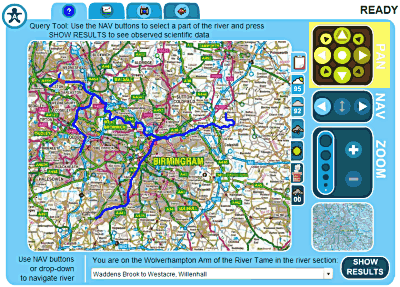
- Moving around by panning: Use the PAN buttons on the right hand side of WebSMURF to move the map around a little at a time. Activate the button pointing in the direction you want the map to move and it will move in that direction. Activating the button in the centre of the PAN section will reset WebSMURF to where it was when you first came to the web page.
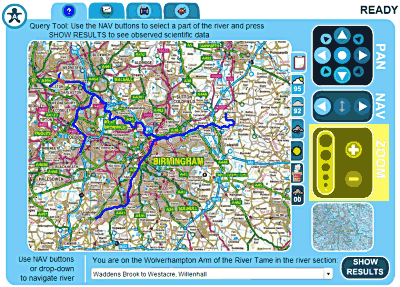
- Zooming in and out: To get a closer look at the any part of the map, use the Zoom + button on the right hand side of WebSMURF to zoom in. As you zoom in past a certain level the map you are seeing will become more detailed. Zoom out again by using the Zoom - button.
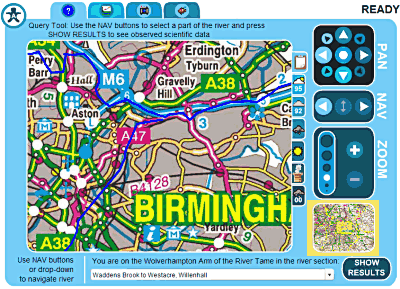
- Using the context box: The little map in the bottom right hand corner of WebSMURF does two things:
- First, as you zoom in, the small blue square shows you where the information you can see on the big map is compared to the overall view.
- Second, clicking with your left mouse button on the little map will centre the big map on the point you clicked. It's a great way of getting to a particualr bit of the map quickly – give it a try!
What is a climate scenario and how do I use them?
As well as containing all sorts of observed data like photographs and scientific data, WebSMURF can give you information on what the river might be like if the climate was different from what it is today.
- To access this modelled data (and to change back to observed data), choose a climate scenario from one of the tabs on the right of the WebSMURF big map.
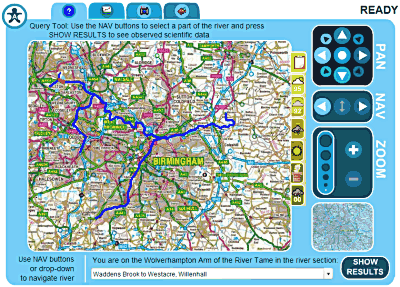
 The Observed climate scenario shows scientific data that has been observed over the past few years, along with photographs and information on fish.
 The Dry Year (1995/96) climate scenario shows modelled scientific data for the river as if the current climate was particularly dry (e.g. like it was in 1995/96).
 The Normal Year (1992/93) climate scenario shows modelled scientific data for the river as if the current climate was on average as it has been over the past few years (e.g. like it was in 1992/93).
 The Cool and Wet climate scenario shows modelled scientific data for the river as if the current climate was particularly cool and wet.
 The Hot and Dry climate scenario shows modelled scientific data for the river as if the current climate was particularly hot and dry.
 The Medium Emissions climate scenario shows modelled scientific data for the river as if the current environment was changed by the addition of a medium amount of carbon dioxide emissions.
 The Wet Year (2000/01) climate scenario shows modelled scientific data for the river as if the current climate was particularly wet (like it was in 2000/01).
I have problems using the mouse - can I use WebSMURF with the keyboard instead?
If you are a keyboard only user with Internet Explorer you can still use WebSMURF (currently Mozilla Firefox users are restricted to the mouse). You can either use the TAB key to move around from button to button in WebSMURF (like you do on a normal web page), or you can use the keyboard shortcuts.
To see a full list of keyboard shortcuts, activate the 'Accessiman' in the top left corner by tabbing to it and pressing enter or just by pressing 'A'.
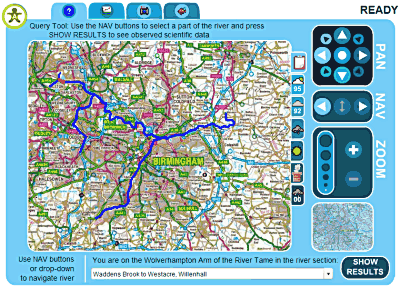
The keyboard shortcuts for each button are displayed!
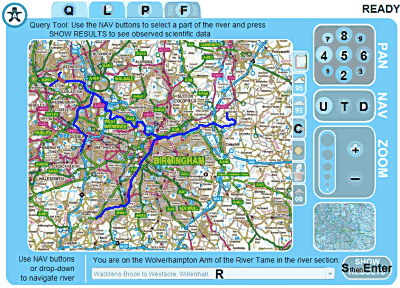
Please note: when you go back to WebSMURF after showing some results you will need to press the TAB key once to return the keyboard focus to WebSMURF and carry on using the keyboard shortcuts.
I'm still having trouble using the WebSMURF System – is there any other way I can see the information?
Yes! If you are having trouble with WebSMURF you can use our 'Flash Free' version. The 'Flash Free' version of WebSMURF can be used to display all of the information we have without having to install anything new on your computer or having to use a map. It is also highly accessible, so is the ideal choice if you are using e.g. screen reading software like JAWS.
Copyright information
Images on this page and used throughout WebSMURF contain Ordnance Survey information which is protected by Crown copyright under the Copyright Design and Patent Act 1988. It is reproduced here under licence. You must obtain prior written permission from Ordnance Survey for all other uses and/or copies made of this data. http://www.ordnancesurvey.co.uk/